Review Financial Statements in Seconds
FinReviewPro by Fenil P Shah is a Windows desktop tool for CPA firms. It ties out every line and subtotal, flags tagging and coding differences between years, recomputes ratios, and gives the reviewer a ranked list of review points.
- Windows 10 and 11 desktop application
- Reads QuickBooks Desktop and Online Excel exports directly
- Client files are processed on your computer and never uploaded
In the author’s testing, FinReviewPro saved at least one hour per client file. Your results will depend on the file.
The mechanical work before sign-off
These steps take hours, are error-prone, and are often skipped under deadline pressure. FinReviewPro runs them together and gives the reviewer one ranked list, so review time goes to judgment.
- Agreeing every financial statement line and subtotal to the general ledger, in both the current and comparative columns
- Checking that accounts are mapped consistently from year to year
- Recomputing the ratios reported to clients or banks
- Rolling forward retained earnings and opening balances
- Scanning for suspense balances, wrong-side balances, and unusual fluctuations
How the Review Works
Four steps take you from a folder of exports to a workbook the reviewer can sign off. The screens below use demo data for Sample Manufacturing Inc.
Select the client folder
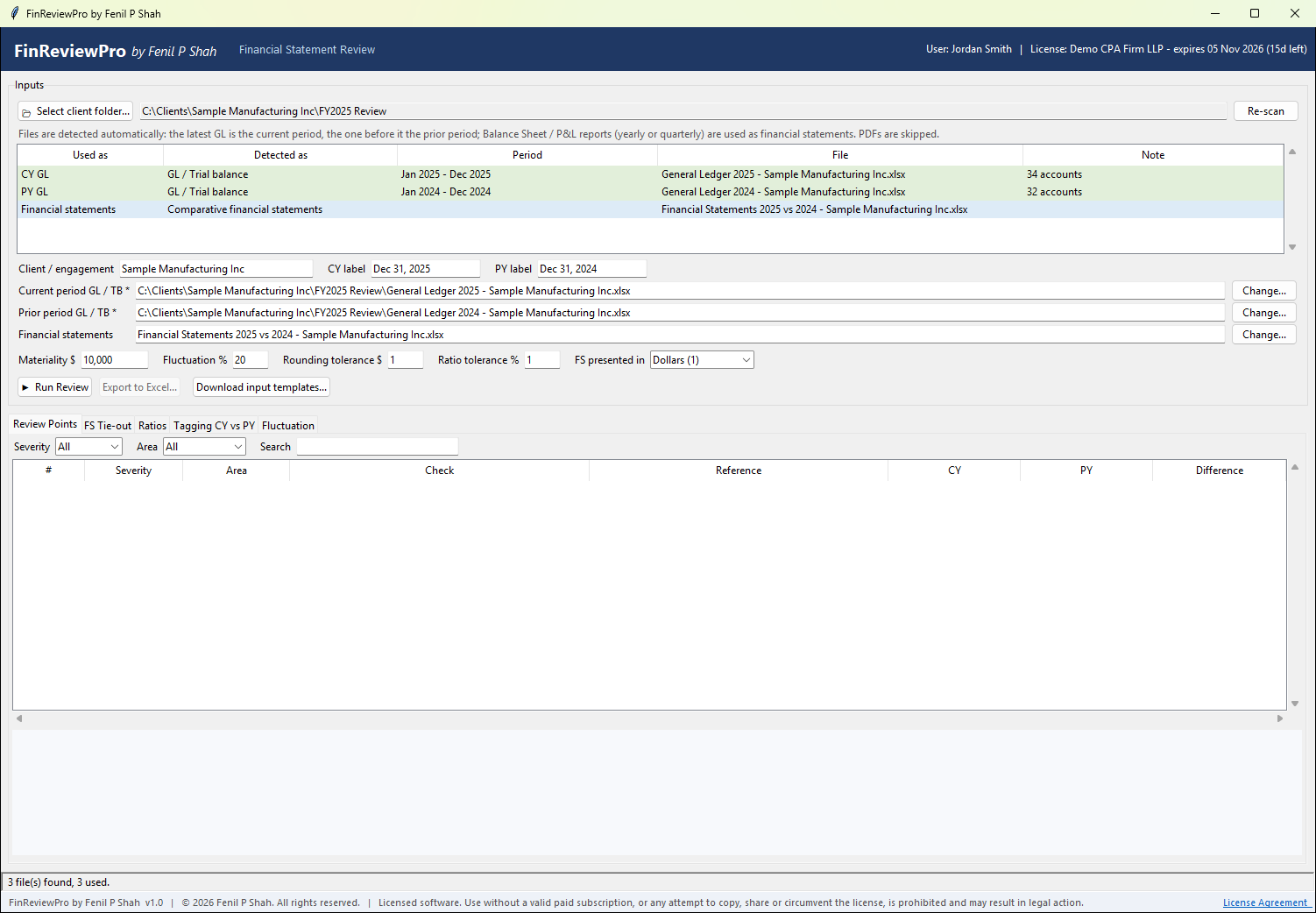
Put the client’s exports in one folder and click “Select client folder...”. FinReviewPro identifies the current-period and prior-period general ledgers and the Balance Sheet and Profit & Loss reports, and works out each file’s period. PDFs are skipped. You can override any file with “Change...”.
Run the review
Set the materiality, the fluctuation percentage, the rounding and ratio tolerances, and the statement units, then click “Run Review”. Interim periods are detected automatically, so nine months is compared with the same nine months of the prior year.
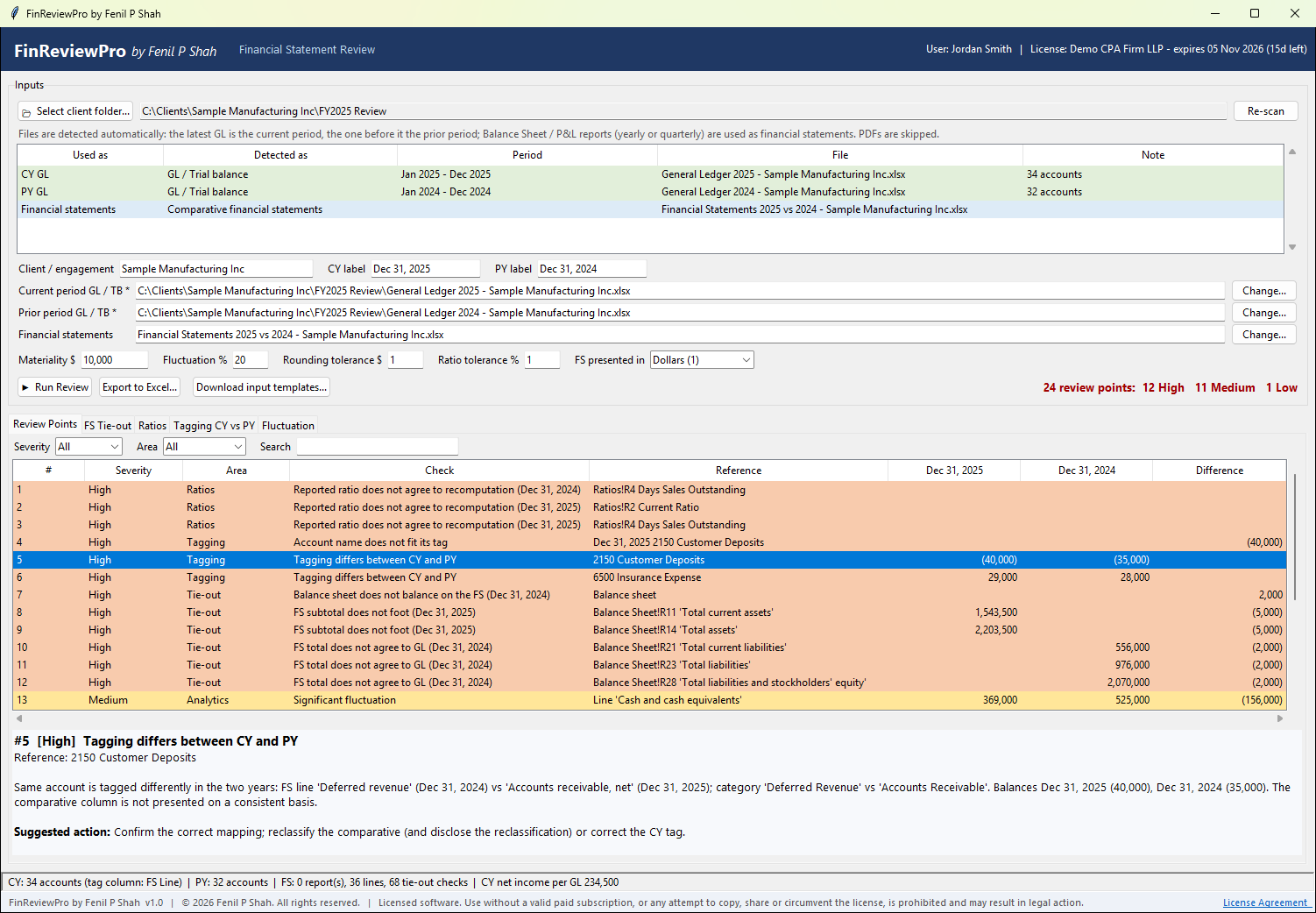
Work through the review points and schedules
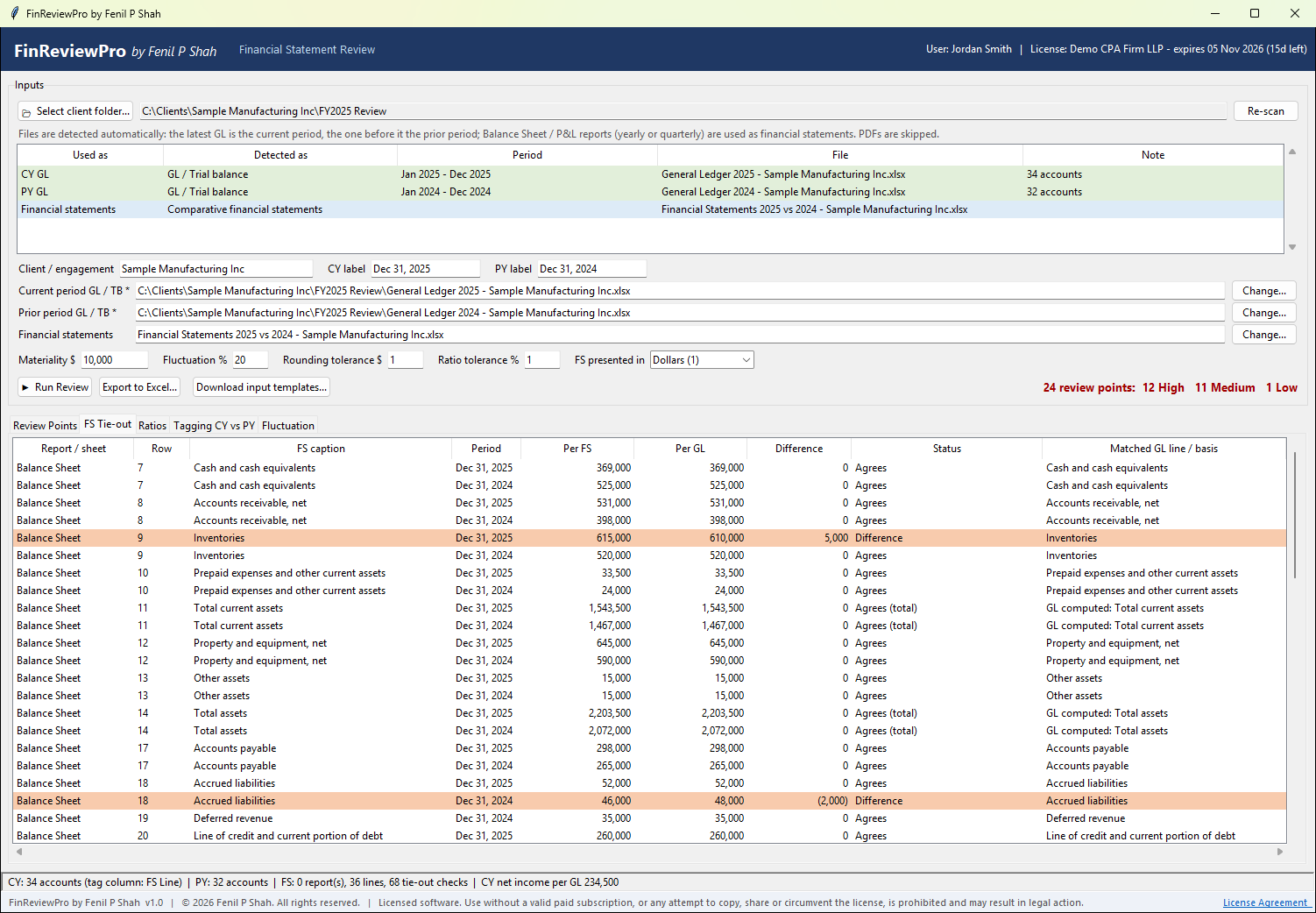
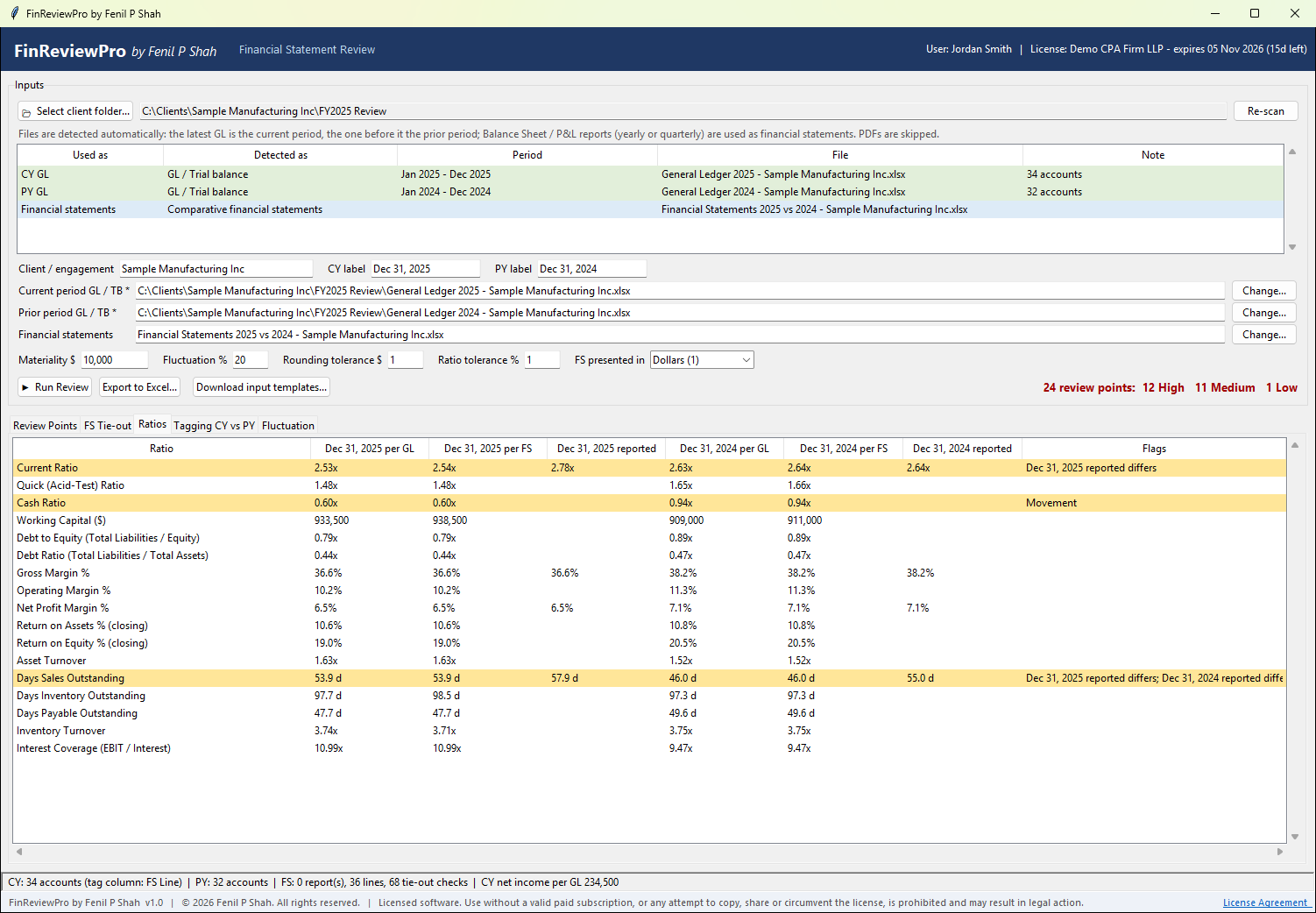
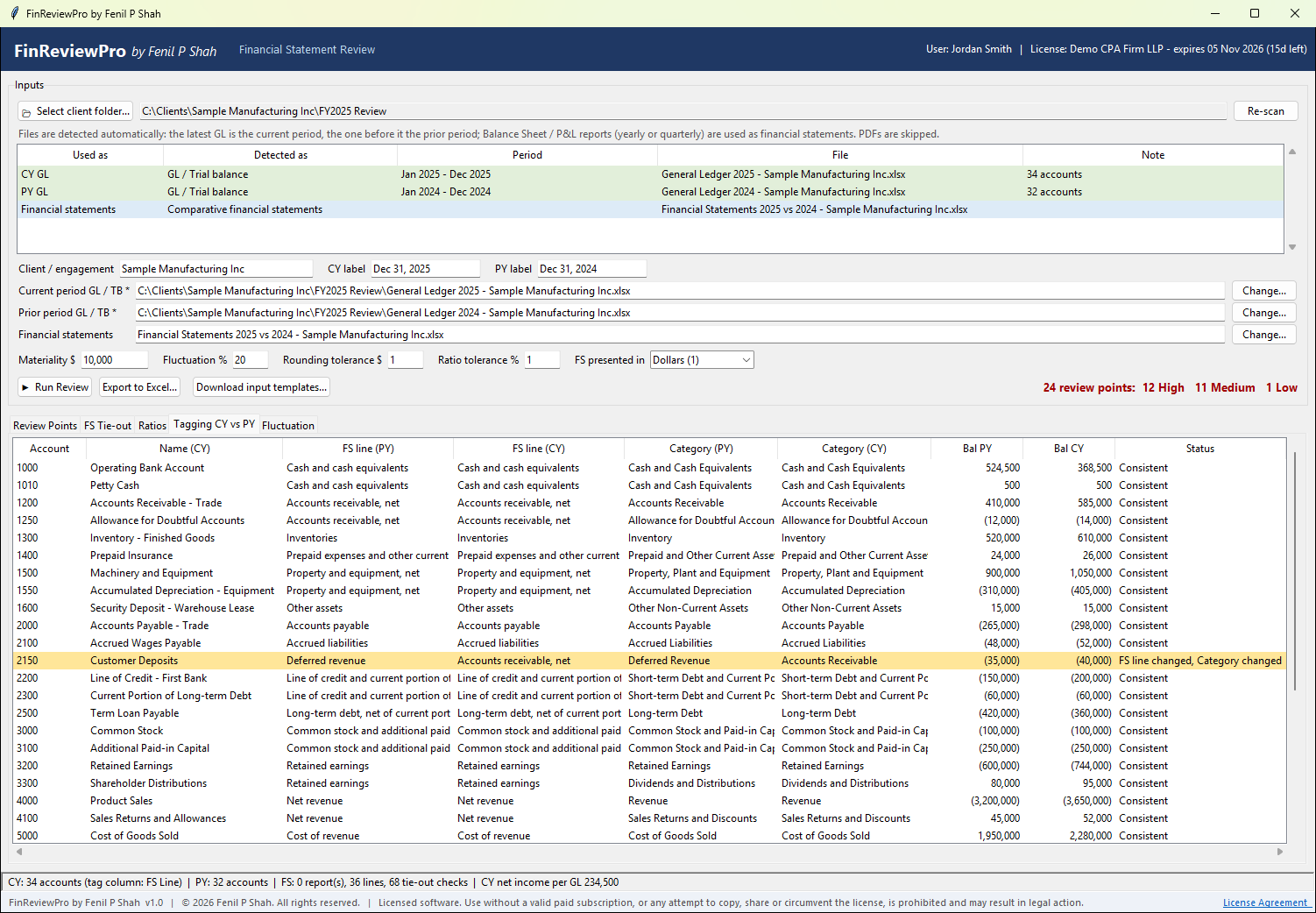
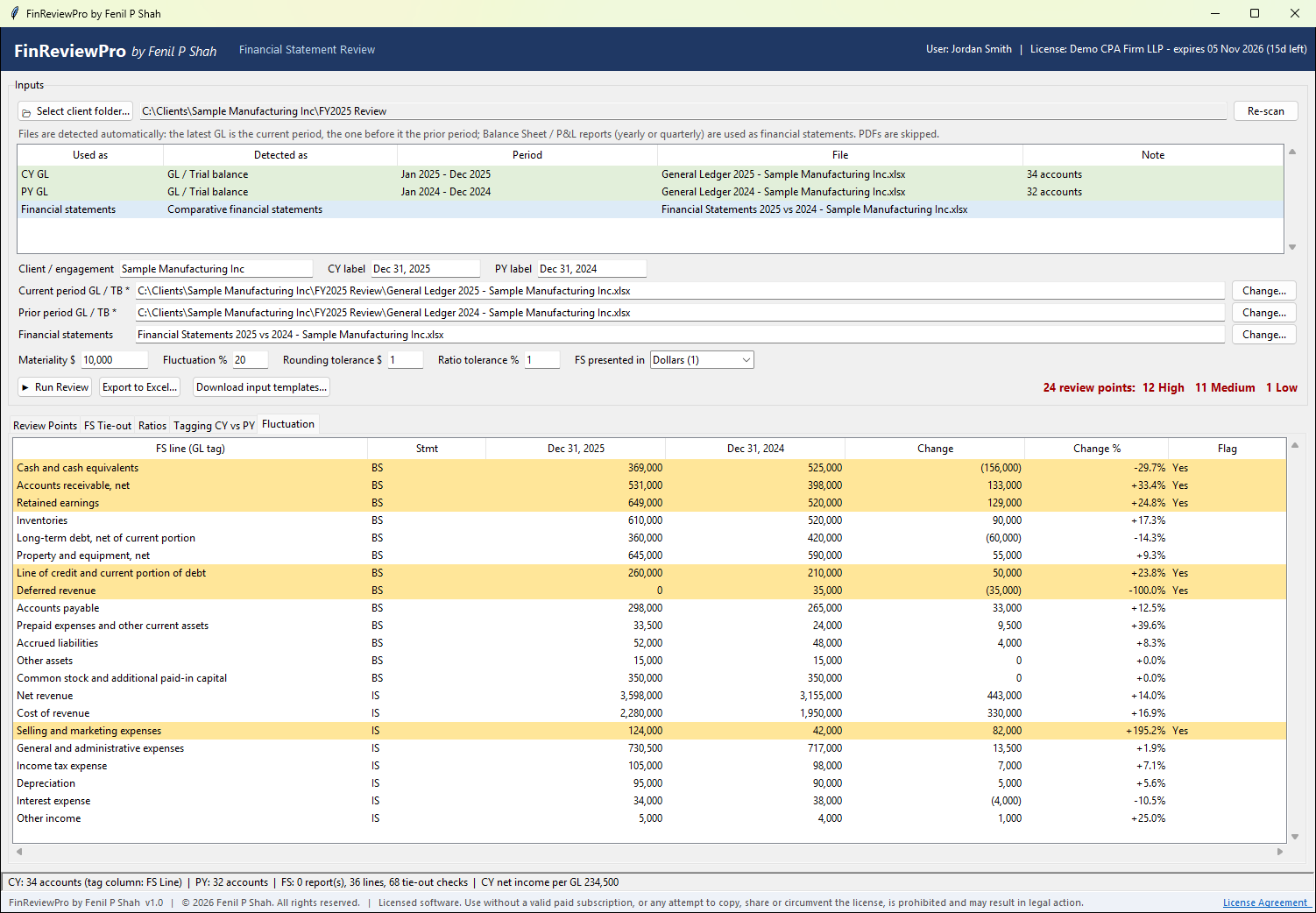
Filter the review points by severity or area, or search them. Four more tabs show the detail behind each point. Click any screen to open it full size.
Export to Excel
Export a branded workbook with columns for the preparer’s response, status, and reviewer sign-off, plus the tie-out, ratio, tagging, and fluctuation schedules.
Status options in the exported Review Points sheet
- Open
- Responded
- Cleared
- Adjusted
- Waived
What it checks
Tie-out
Where the statements and the ledger disagree
- Trial balance debits equal credits, for both periods
- General ledger opening balance plus activity equals closing balance, and current opening equals prior closing, per account
- Retained earnings roll-forward: prior retained earnings plus prior net income less distributions equals current opening retained earnings, including for systems such as QuickBooks that close only net income automatically
- Every financial statement line agrees to the ledger in the current and comparative columns, and every column of a QuickBooks report agrees by transaction date, including each quarter
- Subtotals foot, recognized totals agree to ledger-computed values, and the balance sheet balances for each date
- Balance sheet net income equals profit and loss net income for the same period
Tagging
Where mapping changed between years
- The same account tagged to a different financial statement line, category, or report section in the current year than in the prior year
- Accounts tagged inconsistently within one ledger, and untagged accounts with balances
- Statement lines that mix asset and liability accounts, which may indicate netting
- Renamed accounts, reused codes, new material accounts, and prior-year accounts missing from the current ledger
- Possible change in account coding: an expense or income that stops in one account and appears in another account of the same category at a similar amount
- Account names that do not fit their tag (this check is keyword-based, so false positives are possible)
Ratios
Where reported and recomputed ratios differ
- 17 ratios across liquidity, leverage, margins, returns, activity, and coverage, each computed from the ledger, from the financial statements, and as reported on the client’s Ratios sheet
- Significant year-over-year movements
- Going-concern indicators: negative equity, a current ratio below 1, interest coverage below 1.5, and recurring losses
Balances
Where a balance looks wrong
- Abnormal, wrong-side balances
- Suspense, clearing, “ask my accountant,” uncategorized, and opening balance equity accounts that still carry a balance
- Balances that changed sign from one year to the next
Analytics
Where movements need an explanation
- Line fluctuations above both a percentage threshold and materiality, compared with the same period of the prior year when the current year is interim
- Recurring items that stopped, for example depreciation or amortization not recorded in the interim period
What it reads
- QuickBooks Desktop and Online Excel exports of the General Ledger, Balance Sheet, and Profit & Loss. No mapping setup is needed, because the report sections set each account’s type.
- Any general ledger or trial balance with Account, Debit, Credit, or Balance columns, plus the comparative financial statement template, which you can download in the application.
- Excel (.xlsx, .xlsm) or CSV files, with amounts in dollars, thousands, or millions.
Limits to know about
- Windows only. There is no Mac or web version at present.
- Excel and CSV inputs only. PDFs are skipped, and there are no direct connections to QuickBooks, Xero, or NetSuite.
- The check of account names against tags is keyword-based and can raise false positives.
- Results depend on complete, correct exports.
Client data stays on your computer
- Client files are opened and processed locally. No client data, file content, or results are uploaded anywhere.
- The only network request is an optional date check, which sends no data. Review work does not need the internet.
- Exported reports are saved where you choose.
- Your confidentiality obligations stay with your firm, for example under the AICPA Code, IRS §7216 where applicable, and your engagement terms. FinReviewPro does not change them.
Licensed per computer and named user
- Each license is for the computer or computers and the named users it lists, for a fixed term. Most licenses cover one computer, and the Busy-season Pass covers up to five.
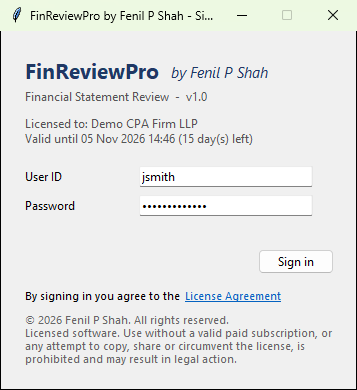
- Licenses are digitally signed and locked to the computers they name. A user ID and password are required at every start, passwords are stored only as salted hashes, and the application closes after five failed attempts.
- The license is re-checked while the application runs, and the application closes at expiry. Renewal is a new license file for the same computer, with no reinstall.
- The protection deters casual sharing and use after expiry. Like any desktop software, it is not immune to a determined attacker.
Who it is for
Staff accountants prepare, seniors and managers review, and partners sign off. FinReviewPro supports that chain with the same ranked list at every level.
- Small and mid-size US CPA firms doing compilations, reviews, audits, and tax-basis financial statements, especially for QuickBooks clients
- Outsourced accounting and bookkeeping firms
- Fractional CFOs and controllers
- Offshore teams supporting US CPA firms
Built by an Indian Chartered Accountant (FCA) with experience in US bookkeeping.
Fenil P Shah, Ahmedabad, India
A tool for qualified professionals
FinReviewPro assists professional review. It does not perform an audit, review, or compilation, does not provide assurance, and does not replace professional judgment, applicable professional standards (including AICPA standards), or the engagement partner’s responsibility. You remain responsible for evaluating every review point and for the accuracy and completeness of the input data.
Pricing
Prices are in US dollars. Each license is for the computers and users shown, for the term shown, and expires automatically at the end of that term.
Free Trial
7 daysOne computer, one user.
Monthly
1 monthOne licensed computer for each user. Each additional user is $19 per month, on their own licensed computer.
Annual
12 monthsSaves $99 compared with twelve monthly payments.
Busy-season Pass
Firm-wide passMade for the weeks around a filing deadline. One firm-wide pass covers up to 5 computers and 5 named users for 15 days.
- Volume discount
- 20% off for every user beyond the fifth.
- Payment
- Through Stripe, in US dollars. Taxes as applicable.
- Terms of use
- Use is subject to the End-User License and Subscription Agreement, which each user accepts at first sign-in.
How a license is issued
You send an inquiry, make the payment, and receive the installer. After you install it, four steps activate your license.
Before you install
Three steps with our sales team
- Send an inquiry to sales@fenil.si with your firm name and the number of users.
- Make the payment through Stripe. The Free Trial needs no payment.
- Receive the installer, FinReviewPro.exe, from us and install it on each computer you will use.
First run
Four steps on the licensed computer
- Open FinReviewPro.exe. A “License required” window shows your Machine ID, which is the computer’s MAC address.
- Click “Copy Machine ID” and email it to sales@fenil.si. With the Busy-season Pass, send the Machine ID of each computer.
- You receive a .lic file, with a user ID and password sent separately.
- Click “Load license file...” and select the .lic file. At first sign-in, read the License Agreement, tick the box, and click “I Agree”.
Questions accountants ask
Does it replace my review procedures?
No. FinReviewPro by Fenil P Shah is a tool that assists qualified professionals. It does not perform an audit, review, or compilation, does not provide assurance, and does not replace professional judgment or professional standards. The reviewer evaluates every review point.
How do I get started?
Email sales@fenil.si to request a 7-day Free Trial or a paid plan. For a paid plan, you pay through Stripe, and we then send the installer. The Free Trial needs no payment.
What does FinReviewPro cost?
Prices are in US dollars. The Free Trial is free for 7 days. The Monthly plan is $29 per user per month, and each additional user is $19 per month. The Annual plan is $249 per user per year. The Busy-season Pass is $99 for 15 days and covers 5 computers and 5 users. Each user beyond the fifth receives a 20% volume discount.
Which files does it accept?
Excel (.xlsx, .xlsm) and CSV. That includes QuickBooks Desktop and Online exports of the General Ledger, Balance Sheet, and Profit & Loss, and any general ledger or trial balance with the usual columns together with the comparative financial statement template. PDFs are not read.
Does it connect directly to QuickBooks, Xero, or NetSuite?
No. It reads Excel exports. Direct connections are not currently available.
Does it run on a Mac or in a browser?
No. It is a Windows 10 and 11 desktop application. There is no Mac or web version at present.
Is any client data uploaded?
No. Client files are opened and processed on the licensed computer, and results are saved where you choose. The only network request is an optional date check that sends no data.
Does it use AI?
AI-generated narratives are not part of the current version. Each review point comes from the software’s built-in checks, with an observation and a suggested action.
Does it hold SOC 2 or another certification?
No. FinReviewPro holds no SOC 2, ISO 27001, or similar certification.
Can several people share one license?
No. A license is for the computers and named users it lists. Sharing user IDs, passwords, or license files, or copying the software to another computer, is not permitted under the agreement.
What happens when a license expires?
The application closes at expiry, and use after expiry is not permitted. To renew, you receive a new license file for the same computer and load it. No reinstall is needed.
Do I need an internet connection?
Not for review work. When it is online, the application confirms the date with a time server. When it is offline, it detects a system clock that has been set back.
Request a 7-day Free Trial
Email your firm name to our sales team. We will send you the installer and guide you through the first run. The Free Trial covers one computer and one user for 7 days.
After-sales support
Questions about installation, your license, or using FinReviewPro? Email our support team, and we will respond within 24 hours.